Showing posts with label error. Show all posts

6 Jul 2025

HP OfficeJet Pro 8610 wireless does not work, can't connect to the printer

All of a sudden, one day you cannot print wirelessly to your OfficeJet Pro 8610 wireless printer - you get this message:
You cannot use the device's wireless function because it has been disabled. For more information, contact your network administrator or the person who set up the device.

It took me a long time to find the answer and then to get it to work was not easy. This is what I did:

Go to the printer's screen

Press the back button four times (this is the difficult part, sometimes it just doesn't work, you have to get the timing right)


Keep trying, eventually you should see this screen:


Select Support Menu


Use the up/down buttons, select Connectivity


Enable the WiFi 

After, the blue WiFi light flashes. Go to the Settings menu, Network Settings, Wireless, use the WiFi wizard, it will search for the network and you can enter your WiFi password. The blue light will stop flashing.


Reference
The following link explains about the 8710 but it's very similar to the 8610 model. It's very helpful, there are even more tips on how to reset the printer too. 

Disclaimer
I was able to fix this issue on an OfficeJet Pro 8610 printer. The steps I've included above may or may not be helpful to you. I am publishing this help here just in case it helps you. I am in no way guaranteeing anything. Whatever you do on your computer, printer or other equipment is at your own risk. I take no responsibility at all. Everything I've written here is in good faith and to hopefully help out someone else.
 

30 Jan 2021

Grunmods Dune 2000 stutters, freezes or crashes

A few months ago I found Gruntmods Dune 2000. This is a freely available download of the classic Dune 2000 real-time strategy game. I downloaded and installed it. During play sometimes it would just freeze with the sound stuttering. I'd have to switch away and 'End Task'. It got to be quite annoying. 


Solution

Open File Explorer

Browse to C:\Program Files (x86)\Gruntmods Studios\Dune2000


Right click DUNE2000.EXE

Click Properties

Click the Compatibility tab


Change the settings to match the above

Click OK

Now launch Dune 2000 as normal, through the shortcut. All should be well!


Configuration: Video Options
If you search online about this kind of issue many have tips about changing the Video Options in the Dune 2000 Config screen. For me I didn't find this so helpful. My Dune 2000 has been running smooth with the following settings, I'm including the below screen shot just in case it will help you. 


Disclaimer 
I'm sharing my solution and experience in case it can help others, if it doesn't help you I am sorry. I am guaranteeing nothing. Every computer and set up is different, maybe try some of these compatibility settings. If you search online you'll find lots of discussion on this topic, good luck!


8 Nov 2020

Sony Android TV connects to the WiFi but not the internet

One day my Sony Android TV (KD‑49XF8096) suddenly stopped receiving anything from the internet. For example, YouTube did not work. 

  • I checked the router (WiFi), all was fine, I could surf the web from my phone and computer.
  • The TV itself was working, it switched on, started up and appeared to work fine, apart from not communicating with the internet. 

One thing occurred, maybe there's a time sync problem? This can be an issue for computers. Let's check the time setting:


Solution

Press Home on the TV remote

Click Settings (gear icon on the top right of the screen)


Click Date & Time

You'll see the data and time setting is by default 'Automatic' and set to use 'Broadcast time'. This is the time from the internet, it should be a good option normally but under some circumstances it can cause this issue.


Click Automatic date & time

Click Use network time

This fixes the problem because 'network time' is the time from the local router (WiFi). This is the first 'hop' in the communication from your TV on its way to the internet. Your router will get the correct time from the internet, therefore all will be well, all the devices will have the correct time and stay up-to-date.

Most importantly, for me this solve the problem, YouTube was working again!


Conclusion
If you've had this issue, I hope this helps you! If not, I'm sorry, I hope you find the solution soon. At least you have ruled out this particular issue from your troubleshooting. 


28 Jan 2020

Copying files from a MicroSD card to PC fails

On an Android phone the 64GB MicroSD storage expansion card was nearly full. I replaced it with a 128GB card. I plugged the old 64GB card in my Windows PC and started copying the photos and videos from it to my hard disk. There was nearly 64GB of data so I left it copying... Upon my return I found it had stopped after only copying only a few files. There was a semaphore error.

Maybe there was a corrupt file? The MicroSD card could be corrupt or faulty?

I tried the file copy again but this time I used the Robocopy command line, it is more robust than Explorer and I felt perhaps it would do a better job. Robocopy also stopped after copying just a few files. It was as thorough the SD card was no longer recognised by my PC.


Robocopy ERROR 121 (0x00000079)
The semaphore timeout period has expired.

I tried a different USB port
I tried a different SD card reader
No success.

I ran the Robocopy command, when it got stuck I removed the SD card physically from the computer, then plugged it back in. It would copy more files... Until getting stuck again. I successfully used this method to copy a large number of files but with hundreds of files this was not a viable solution.

I noticed that mostly smaller files were being copied more often than larger ones. Video files of 100MB just got stuck.

For the video files over 50MB I used 7-Zip to create a compressed file with volumes. I ended up with lots of 1.44MB files. I managed to copy these smaller files to the C: drive and extract the video file. I continued with this for a time, I was mostly successful. But this was slow and the semaphore error came up again. 


Solution
I did a lot of searching on the web, I came across an application called Backupper. I tried this to synchronise a folder on the old MicroSD card to my C: drive. This worked! It does take a long time and it is quirky software because it has a percentage complete that goes steadily to 76% and appears to get stuck there. But it is still working, if you open Explorer to the destination folder you will see new files appear. Be patient though, in my case I left it running all day.


In the above screen shot you'll see that it couldn't read a file. In this case you'll just have to accept that, because it can't work miracles, some files might be corrupt/damaged. I did recover most of the files though.


Conclusion
If you have the semaphore error do not despair. Try Backupper, it's worth a go.

Of course it does raise a question over the reliability of MicroSD cards. My feeling is that when you have used a card extensively and almost filled it with so many files, the possibility of a failure like this grows. Contemplate replacing your micro SD card every few years and of course back up. Google Photos backup is free therefore at least for JPGs you can safeguard them. For videos maybe copy them off your phone periodically?

I hope this was helpful. Many thanks to Backupper.
https://www.ubackup.com/download.html


Disclaimer
I am not guaranteeing anything here. This is just my experience! Good luck.


Related
You might also be interested in the following recent article I wrote about a problem I found with MicroSD cards. This is more related to the speed of the card and which one to purchase.
https://mgxp.blogspot.com/2019/12/which-microsd-card-should-i-use-in-my.html

23 Nov 2018

Excel - There are too many records to complete this operation

In Excel I was working with a pivot table. The following message popped up:
"There are too many records to complete this operation."


Solution
Click Analyze (or Options in Excel 2010)
Click Fields, Items & Sets
Click Solve Order

If you have something listed, it is probably causing the problem. Delete it, then try working with your pivot table again, all should be well.


NOTE: I've tested this with Excel 2013 but it should work the same way with other versions.


3 Oct 2018

Microsoft Word has stopped working - error when editing an existing document

I opened an existing Word document and edited the footer. I just typed some letters and bang - I got a message Microsoft Word has stopped working and then I have to close Word!


I tried several times including using the recovery option and I continued to have this issue. It was really annoying because I hardly typed anything before Word would crash and the document was only two pages so hardly anything to tax Word or the computer's resources.

I tried repairing my Office 2013 but this did not help me. I searched online and found some articles, here's one that was particularly clear and helpful:
https://www.online-tech-tips.com/ms-office-tips/fix-microsoft-word-has-stopped-working/
However, it didn't help me, my problem persisted!


Solution
Instead of double clicking the Word document from Windows/File Explorer I tried opening it from within Word (File | Open). This did not help. Then I realised there was a repair option when you open the document - I tried this and it worked for me! Here's exactly what to do:

In Word click File | Open
Click Computer and Browse to where you have stored the document
Select the document you wish to open - but don't open it, look at the bottom right of the window:


Click the down arrow on the Open button (as shown above)
Click Open and Repair

The document opens and you may edit it, it should not crash! 
Click File | Save As, replace the old document with this new one.


Conclusion
The Open and Repair option worked for me. I hope it helps you but if not try the link I included above, there were other ideas there that might help you. Good luck!

NOTE: In the above example I was using Windows 7 and Word 2013. 


16 Mar 2018

WMIC /format - Invalid XSL format (or) file name.

You may see an error when using WMIC /format switch, as in the following example where I wanted to write a list of the installed patches on my computer to a CSV file:
wmic /output:"d:\patches.csv" qfe list full /format:csv

But I got this error: Invalid XSL format (or) file name.


Solution
Copy the XSL files as follows:

from
C:\Windows\system32\wbem\en-us\*.xsl
to
C:\Windows\system32\wbem

Once you've done that, when you run the WMIC command with the /format switch, it will work. I have successfully tested this on a Windows 7 computer.


Reference
https://stackoverflow.com/questions/9673057/wmic-error-invalid-xsl-format-in-windows7


6 Jan 2017

Samsung Gear S3 Frontier watch face sunrise/sunset widget showing No Info

The Samsung Gear S3 Frontier and Classic smartwatches both have a watch face called 'Frontier' included as standard. I have the S3 Classic watch and I liked the Frontier watch face, I selected it but then I noticed the sunrise/sunset dial said "No info" - as in the image below:


Issue
It says "No info" in the sunrise/sunset dial, bottom middle.

I pressed where it says "No info" and it told me to add a location on my smartphone. The screenshot below is from my smartphone at this point:


I added my location but it told me I had previously done that! I tried many times but no luck. It was still saying "No info" on my S3.


Solution
On the smartphone, open the Samsung Gear app:


Press Settings | Apps

On the Apps page press the Weather cog/gear icon (as shown above)


Press Use current location

Make sure it is set to On (as shown in the example above)

NOTE: Before setting it to On do read the message on the 'Use current location' screen (shown above). Make sure you understand what it will do, if you are worried about your location information being used by others then do not use this feature.

After setting 'Use current location' to On, check your Gear S3:


You can see in the images here that the sunrise and sunset is shown in the dial on the watch face.


I hope that was helpful :-)

29 Sept 2016

Google Keep reminder notifications stopped working

I use Google Keep on my Android phone. The reminder notifications didn't pop up anymore. I checked all the settings on the Notifications Manager on my phone, all was well, notifications were switched on for Keep.

As a test I opened Keep in my browser on a desktop PC (browse to https://keep.google.com). I set a reminder. At the time it was due it popped up on my PC and also on my phone! Since this time the reminders have been working on my phone.

I do not understand why and I am keeping my eye on this. It's September 2016 at the time of writing, perhaps there will be a fix in the future, let's hope so. If you have had this issue and you've solved it a different way, please comment here.

23 Feb 2016

When deleting files - Source Path Too Long

In Windows, when deleting folders/files have you seen this error message:

Source Path Too Long
The source file name(s) are larger than is supported by the file system. Try moving to a location which has a shorter path name, or try renaming to shorter name(s) before attempting this operation.


Windows 8.1 screen shot - it varies depending on your version of Windows.


If copying not deleting?
If you received a similar message when copying files, please see a previous article I wrote on how you may use RoboCopy to help in that scenario:
http://mgxp.blogspot.ch/2015/10/when-copying-files-source-path-too-long.html


Why?
It's due to a limitation of 256 characters of the folder and file name length combined.


Solution
To delete a folder that contains many sub-folders and files with very long file names, there are a few solutions out there including some third-part tools. You could also use the SUBST command to shorten the path but that may not be successful depending on the length of the files/folders you have. However, I've discovered that it's possible to use RoboCopy, the free command line tool that comes with Windows to do the job perfectly!

RoboCopy is for copying files or synchronising folders. I've written a few articles on this tool already - click here for more information. RoboCopy can understand and work with file paths longer than 256 characters. RoboCopy allows you to synchronise folder 'A' with folder 'B'. Imagine that folder 'A' is empty, there are no files in it - if we synchronise that folder with a folder that does have files (folder 'B') then that folder will also be empty. That's the solution. The following is an example of how this works in practice.


Example
I have a folder called 'Folder with very long names'. Inside this folder I have many nested sub-folders with long names. Inside those sub-folders I have many files with very long names. When I try to delete the folder (and sub-folders/files) I get the 'Source Path Too Long' error. 

At the same level of the folder I want to delete 'Folder with very long names', create a new folder called 'Empty':


The folder called 'Empty' will have nothing in it (it should be empty!). 

Open a command window (press Win+R and type CMD [Enter])

At the command prompt change to the same drive/folder where you have the folders 'Empty' and 'Folder with very long names'. 

At the command prompt type the following command:
ROBOCOPY Empty "Folder with very long names" /MIR  [Enter]

The contents of the folder 'Empty' will be mirrored (/MIR parameter) to the folder 'Folder with very long names'. Because the folder 'Empty' has nothing in it, the contents of the destination folder 'Folder with very long names' will end up with nothing in it! Perfect! Now you can remove (delete) the folder yourself without any trouble.


Conclusion
It's very annoying that Windows doesn't properly support folder and file names longer than 256 characters. It's as if they added the functionality and forgot to update all the tools. Even if you try the command line DEL command you can't delete a folder with very long folder/file names. Using RoboCopy is hassle free, it works. Again it has come to the rescue because it can also solve this issue for copying files. 


16 Nov 2015

Java - Unable to launch the application

When you try to start a Java application do you see the following message:
Unable to launch the application

Java error: Unable to launch the application

There are a few possible solutions - try each one in turn:


Solution 1 - Clear the Java Cache
The most common reason for 'Unable to launch the application' is that the files in the Java cache are corrupt or damaged in some way. You can clear the Java cache and when you run the application again it'll download a fresh copy of the application files. Follow these steps to clear the Java cache:

Control Panel 
Search for "java"
Click Java (you'll see the Java Control Panel)
On the 'General' tab, under 'Temporary Internet Files' click Settings
Click Delete Files (button near the bottom of the window)
Click OK

The above is explained in more detail here:
https://www.java.com/en/download/help/plugin_cache.xml


Solution 2 - Ensure 'Keep temporary files on my computer' is enabled
I've found recently (with Java 8 update 65 64-bit in particular) that on going to clear the Java cache the buttons were greyed out (disabled). In fact the first option 'Keep temporary files on my computer' is sometimes disabled! This cases the cache to be turned off, meaning that Java will not work.

Java Keep temporary files on my computer

Ensure that 'Keep temporary files on my computer' is enabled (ticked) - as shown above.

Click OK
Normally this will be fine but to be sure it is a good idea to restart your computer at this point.


Solution 3 - Reinstall Java
If all else fails, reinstall Java.

IMPORTANT: When you reinstall Java, first make sure you uninstall all existing copies of Java that are on your computer - they'll show up in the Control Panel programs list. Restart your computer. Then install a fresh copy of Java.

A fresh copy of Java can be downloaded from:
https://www.java.com/en/download/manual.jsp


UPDATE: May 2020
I've come across a new scenario where clearing the Java cache or reinstalling do not help. 


Solution 4 - Check the Routing and Firewall
When you try to start a Java application do you see the following message:
Unable to launch the application


Click Details


Error: Unable to load resource
If you see the Unable to load resource error it will also reference a URL. This is the location of the JAR file to download. 

As a test, copy and paste the URL into your browser. Does it successfully download the JAR file (or it might be a .GZ file)? If it fails, that is the problem. Somehow that file is being blocked somewhere in the route from the server to your computer. Check for any rules in the Router and especially any Firewall you have between the computer and the server (URL location). In the case I saw the file was being blocked on the network firewall. 


16 Oct 2015

When copying files - Source Path Too Long

In Windows, when copying files have you seen this error message:

Source Path Too Long
The source file name(s) are larger than is supported by the file system. Try moving to a location which has a shorter path name, or try renaming to shorter name(s) before attempting this operation.

Source Path Too Long
Windows 8.1 screen shot - it varies depending on your version of Windows.

It's due to a limitation of 256 characters of the folder and file name length combined. 

The simplest solution I've found to this issue is to use RoboCopy to copy the files. It ignores the 256 character limit and just copies everything, no questions asked!

From the command line (CMD):
ROBOCOPY [source] [destination] /s  

For more help please have a look at the following article about RoboCopy:


8 Jul 2015

IE Default Browser message has been hijacked / redirected

If you don't use Internet Explorer much you might've set another browser as your default. Perhaps you use Chrome, Firefox or something else. When you start IE it will tell you that IE is not your default browser, it'll ask you to change your default to IE. OK, something you probably ignore but...


Something isn't right!
One day I opened IE (Windows 8.1 and IE11) and found that the usual 'default browser' screen was different, it looked like this:


What!?! This is not the usual screen!

IMPORTANT: If you have something like the above, do not click on any of the links. You never know where they'll take you or what **** will be installed on your computer. Be careful!

When I opened IE if I watched carefully I could see the normal Microsoft page flash by. There must've been some kind of redirect for res://ieframe.dll/defaultbrowser.htm

When I put my pointer over (don't click it!) the Yes button I saw a link to adnxs.com in the status bar of the browser - adnxs.com is an advertising site, from what I could find on the web, it is not to be trusted. I'd recently installed some dodgy software and I had removed it but obviously 'something' was left behind. I spent a lot of time running different scanners like Malwarebytes on my PC but nothing could fix this problem with IE.


Solution
First make sure your computer is clean from malware (viruses, adware, spyware and other malicious software). Malwarebytes is excellent. It's also a good idea to use a registry cleaner, my recommendation is CCleaner, it is free and does a good job of removing old registry entries and temporary files.

To actually fix the issue with the default browser redirecting, run SFC, a Microsoft Windows utility. It replaces the hijacked file (ieframe.dll) with a fresh one. Here's exactly what to do:

Open the Command prompt as Administrator (in Windows 8.1 right click the Start button and click Command Prompt (Admin)).


As you see in the above screen shot, enter the command:
SFC /scannow

When it has finished restart Windows.

Now open IE, all should be fine.


Conclusion
Don't forget SFC! It can be a lifesaver.

Thanks to ElioJNFerreira who posted this solution to the Microsoft Community Forum. If you want to understand more about this issue, click the link and you'll see the full discussion thread.


References

SFC
https://support.microsoft.com/en-us/kb/929833

Microsoft Community Forum
http://answers.microsoft.com/en-us/ie/forum/ie11-iewindows8_1/redirect-after-browser-default-check/33b31756-6b27-473c-b4e5-bd3a2b896c4e?tm=1432637817946&auth=1


8 Oct 2014

Word experienced an error trying to open the file. Please try the following suggestions

Someone sent me a Word document today, I tried to open it and the following message appeared:
Word experienced an error trying to open the file. Please try the following suggestions


Reason
Word has blocked a file it thinks might be dangerous. In my case it was a macro enabled document (.docm) but it can also be any Word document, possibly sent as an attachment on a 'suspicious' e-mail.

What you must do is ask yourself a serious question:
Is the file from a trusted source? 
  • If yes, then proceed. 
  • Otherwise ask yourself whether you really want to open this potentially dangerous file.


Solution
Thanks to Microsoft's knowledgebase I found the solution and the following worked for me. Here's the short version but of course the full knowledgebase article explains more (I've referenced it below).

WARNING: Only follow these steps if you received the file from a trusted source.

In explorer find the document you wish to open, right click on it, click Properties:


Click Unblock, Apply, OK

Now in Word try File | Open, select the document and it should open normally.

For a full explanation please see the following Microsoft Knowledgebase article:


Version
I'm using Word 2013 but from the article (above link) Word 2010 and 2007 work the same way. 


Conclusion
I know I'm only copying what Microsoft's article already says but I thought I'd post this shorter version as it probably works for most people. The Microsoft article goes into more depth about using the Trust Centre so it's well worth a read if you have a more serious issue. The reason for this seems to be that I received a macro enabled doc (.docm) and Word blocked it to protect me. It's just a click to unblock so once you know this it is pretty easy to 'solve'. Feel free to write your experiences in the comments below.


References


24 Sept 2014

IE11 - blank page, can't browse and many options are greyed out

Issue
When using Windows 8.1, start Internet Explorer 11 (IE11) as usual and you see the following:


The screen is blank (no home page). It is not possible to browse anywhere. Most of the gear menu's options are disabled (greyed out). 


Reason
There appears to be a bug that after running the Developer Tools (press F12) the user policy gets messed up. If anyone reading this article has some more detailed information then please write in the comments, it would be really good to understand this issue more.


Solution
This is the best solution I've found. There do seem to be more (see the References below) but have a go with this first, it's worked repeatedly for me. 

1.  Press the Windows key and R to bring up the Run dialogue box


2.  Type iexplore -extoff and press Enter (as shown above)
IE will load without extensions or add-ons.

3.  Press F12 to bring up the Developer Tools

4.  Press F12 again to close the Developer Tools

5.  Close IE

6.  Start IE normally (use your usual icon) and it should be back to normal


References

22 Sept 2014

Lync 2013 - blank desktop after accepting a Desktop sharing request

Someone wanted to share their desktop with me using Lync 2013. Everything looks fine, I accepted the request, the Lync window grew larger but my colleague's desktop was not there! There was just a blank white space. The colleague sharing their desktop with me did not realise anything was wrong. Why can I not see their desktop?


Solution
I searched on the web and read a few articles and forum messages. It seems to be a problem with object security and you need to remove a registry key to fix this. I found this article:
http://blogs.technet.com/b/lync_tips_and_tricks/archive/2013/01/11/lync-2013-desktop-sharing-shows-blank-screen.aspx
It has fixed the problem for me. Here are the steps I took:

NOTE1: You must have Administration access permission for Windows.
NOTE2: My example is using Windows 8.1 64-bit and Lync 2013 32-bit.

First start the Event Viewer and look for the Office 2013 alerts, there will be one generated from your attempt to use Lync's desktop sharing - here's how:

Press Windows key and R to bring up the Run dialogue box
Enter eventvwr and press Enter
Expand the Application and Services Logs section

Click Microsoft Office Alerts - see the screen shot below...


In the above screen shot, you'll see I had an alert at 10:23. I clicked on it and in the space below it lists some information. The interesting part is the CLSID number - note this! In my case it's a whole string of zeros.

Start Regedit (press Windows key and R, enter regedit)

Browse the tree to:
HKEY_LOCAL_MACHINE
SOFTWARE
Wow6432Node
Microsoft
Internet Explorer
ActiveX Compatibility


Select the folder that is named the same as the CLSID number you saw in the Event Viewer - in my case the one with just zeros.

BACKUP: Click File | Export  - save a copy of this registry entry as a backup. If later you decide this didn't help or there's some problem, you can restore it.

Delete the key Compatibility Flags

Now ask someone to connect with you and share their desktop - hopefully it should work!


Conclusion
This is a strange problem and I wonder if Microsoft will roll out a fix for it at some point? From what I can understand it looks like an ActiveX component is blocked. I read on a forum that one person said they could get around the problem by using Firefox as their default browser. Presumably Lync would us Firefox to render the shared desktop rather than IE, as Firefox doesn't use ActiveX then there would be no security issue? I also believe from what I've read that this issue only affects Lync 2013, since there was an update to security for it. Lync 2010 users may not have this problem at all. Whatever the reason for this, I hope that Microsoft fixes it properly at some point. I'll be watching my PC carefully to see whether this issue comes back - after all, I don't know why it happened in the first place, I was previously using Lync 2013 desktop sharing without a problem.

If/when I discover more about this issue I'll update this blog article. In the meantime, feel free to write your experiences in the comments.


Reference
As mentioned above, I found this here:
http://blogs.technet.com/b/lync_tips_and_tricks/archive/2013/01/11/lync-2013-desktop-sharing-shows-blank-screen.aspx (last accessed 22/09/2014)
Many thanks to Joao Loureiro for this.

19 Sept 2014

Excel - A PivotTable report cannot overlap another PivotTable report

In Excel 2013 click on an existing pivot table and click Refresh to refresh the data in the pivot table. The following error message may appear:
A PivotTable report cannot overlap another PivotTable report.


Reason
Somewhere in your workbook there are two pivot tables on one sheet that are close together. When you refresh one of those pivot tables 'grows' in size (because of a change in data perhaps).


Solution
The pivot table you clicked refresh on may not be the one that's causing the trouble. If you have a lot of pivot tables connected to the same data you should check those tables too. Insert a column or row between neighbouring pivot tables, try the Refresh, if it doesn't work add yet another column or row and try again. You will find a neighbouring pivot table that was causing the trouble.

For me, I found that I had a Grand Total column off on a pivot table but when I refreshed it turned on, causing it to bump up against another pivot table.

To avoid this issue altogether make sure there is at least a couple of columns/rows between pivot tables or place them on separate sheets if you can.

IMPORTANT: If you click Refresh on a pivot table that is on its own on one sheet and it gives the above error it is because clicking the Refresh button tries to update all pivot tables connected to that one data source. Therefore somewhere else, on another sheet perhaps, you must have two pivot tables side by side and one is growing in size with the refresh and 'hitting' the other one. Therefore if you get this error, look through all your sheets, not just the one you are working with.


Excel Version?
I experienced this issue with Excel 2013 but I presume it will be the same with Excel 2010 and maybe even earlier versions. If anyone has additional information please feel free to add your comments below.


4 Jul 2014

Excel - Reference is Not Valid when refreshing pivot table data

Issue
In Excel if you click the Refresh button to update your pivot table data and the following "Reference is not valid." appears:


...this means the pivot table cannot understand the data source. Often this is because the pivot table was previously referencing a 'table' and that table (data set) has been deleted and replaced with something else, maybe another table.


Solution
Click on the sheet where the data/table is

If it's formatted as a table check the table name - on the far left

Change to the sheet where the pivot table is

Click once on the pivot table

Under 'PivotTable Tools' click Options (or Analyze if you are using Excel 2013)

Click Change Data Source

It'll ask you for the range or table name, make sure the table name is correct


Explanation
Pivot tables reference either a table name or a range of cells for their data. If you replace the data sometimes the table name or range is changed. When you try to refresh the pivot table data, Excel can't find the data because it's referring to the wrong/incorrect table name. Using the Change Data Source allows you to select where your pivot table gets its data from.

An alternative could be to change the table name to the name the pivot table is expecting. This also works well. Which method you choose is up to you.

For more information on refreshing pivot table data please see the previous article here.
http://mgxp.blogspot.ch/2014/07/excel-refresh-data-for-pivot-table.html


Conclusion
If you are using tables with pivot tables and you update the data you may have this problem. But it's easily fixed with the Change Data Source option or by changing the table name.


Excel Version?
Excel 2013 and 2010, probably earlier versions too - feel free to write in the comments below about your experiences.

3 Mar 2014

Excel - CSV files do not open correctly

Introduction
Do you open CSV (Comma Separated Values) files in Excel often? Normally you'd expect when you double click on a file for Excel to recognise it as a CSV, open and display the data correctly. But sometimes that doesn't happen, here's a description of this issue with some possible solutions. I hope this helps!


Problem
When you double click a CSV file it opens in Excel but all the data appears in Column A. Excel does not automatically detect that the file is comma delimited.

Incorrect:

You can see that all the data is in Column A. Excel isn't 'seeing' this file as a table of data, it's just seeing it as text. This makes using filters and pivot tables impossible.

Correct:

The above is what you want. The data are in their respective columns. This is perfect for filtering and pivot tables.

NOTE: The above screen shots are of an example CSV file opened in Excel. Of course what you see when you open your CSV file will vary but the general layout will be the same.


Reason
The Windows 'Region and Language' settings has a parameter 'List separator'.
If you are using English then 'List separator' is set to a comma "," and Excel should open CSV files correctly.
If you are not using English you may have a different 'List separator' and that is what is causing the problem.

To see this:

  1. Click Start
  2. In the Search box type: Region and Language
  3. Double click Region and Language (or open Region and Language from Control Panel)
  4. On the Formats tab click the Additional settings button
  5. The List separator should be a comma, if it is not a comma, there will be a problem with opening CSV files.


Solution 1
Don't double click CSV files to open them. Don't worry about the language setting. Instead, from inside Excel, click File | Open, select the CSV file, it'll ask you for the delimiter, use ",". This will always work.

Or, a variation on this would be to double click to open the CSV but once Excel is open with the data incorrectly shown on the screen, click Data | Text to Columns. Excel will prompt you for the delimiter.


Solution 2
Change your language setting to English.


Solution 3
Keep your language setting but change the 'List separator' to a comma ",".


Solution 4
Add "sep=," (without quotes "") to the first row of the CSV file.

To do this, open the CSV file in Notepad (or another text editor like Notepad++ for example).


Add sep=, as the first row, similar to my example above.

Click File | Save and exit Notepad.

When you open this CSV file by double clicking it, Excel will see that the separator is a comma "," and format the data correctly. The first row (sep=,) will not appear in Excel.

This is probably the best solution. It's also the most elegant because the user doesn't even know about this. It just works for them!


Conclusion
There's no perfect solution but at least there's a number of different things you can do. I prefer the last one (sep=,) it makes the whole issue invisible to users.


Excel Version?
Excel 2013 and 2010, probably earlier versions too - feel free to write in the comments below about your experiences.


20 Jan 2014

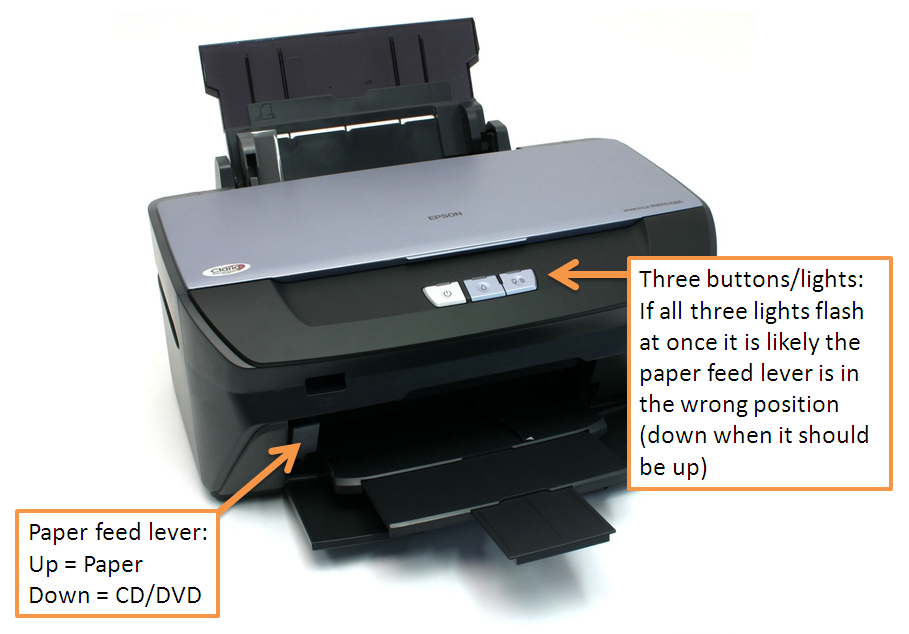
Epson Stylus Photo R265 all three buttons flashing

If all three lights on your Epson Stylus Photo R265 (or other similar printer) start flashing, here's what to check:


1.  Make sure the paper feed lever is up. If it is down then the printer will expect a CD/DVD for printing. If the lever is in the down position then switch off the printer, move it up and switch on the printer again.


2.  Check the printer driver properties to ensure it is not set to print to CD/DVD (assuming you want to print to paper).


3.  If you are printing from Word check in the Page Setup and ensure paper is set and not the CD/DVD - it should be set to the Default tray. This may seem obvious but I had an experience myself where I opened an old Word document and tried to print it. Previously for sure I'd printed to normal paper but this time all three lights on the printer flashed, I was in trouble! Upon checking Word's Page Setup I found it was set to CD/DVD - very strange. In other words, this is well worth checking, follow the steps below:

a)  In Word 2010 click Page Layout


b)  Click the Page Setup arrow button - as shown in the above screen shot


c)  Make sure your screen looks like the above - Default tray (Sheet)


Reference:
Epson's list of 'flashing light' error codes for the R265 printer:
http://support.epson-europe.com/onlineguides/en/spr265/html/trble_1.htm